
Managing User Access Across Multiple Databases
The User Access Manager role allows you to manage database access by user. This is helpful for organizations with multiple databases and allows better control of your user access. If you are interested in utilizing this user role, please reach out to support.balance@evertrue.com.
When you log into Balance, you'll see options to 'Select Database' and 'Manage Balance Access' on the left side navigational panel.
To simply access a database, choose 'Select Database', then make the appropriate selection.
Viewing and Editing User Access
To view and edit user access, click ''Manage Balance Access'.
You'll see a list of all users assigned to your databases with a 'DB Count' column which reflects the number of databases currently assigned to each user.
Click on any column header to sort the list and the Search bar can help you locate specific users.
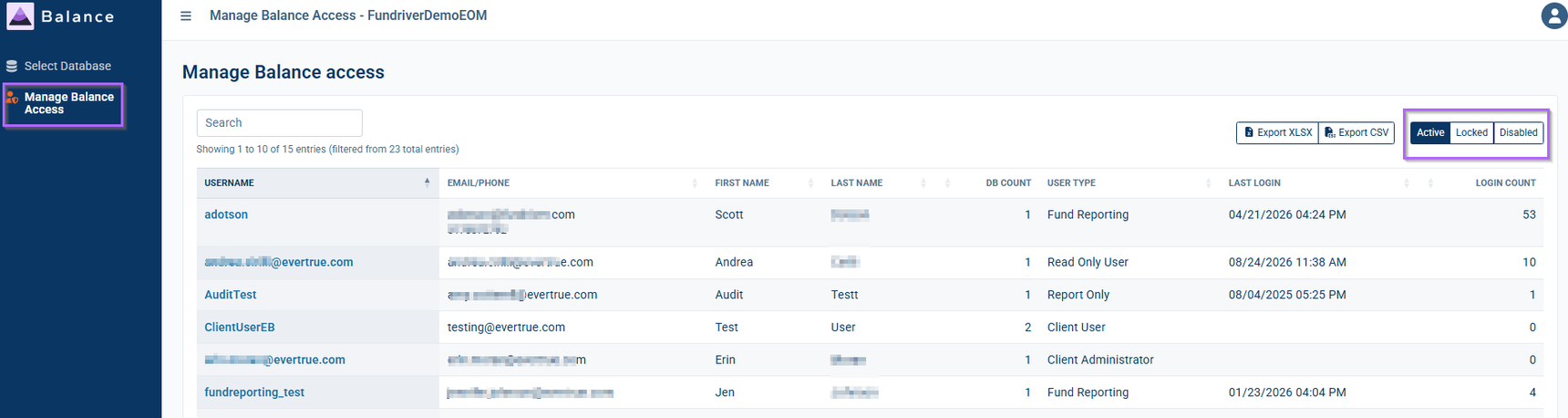
Note: Only Active users will appear on the default Active user list.
- If a user is Locked (typically due to multiple incorrect login attempts), click 'Locked' towards the top right corner of the page to view the Locked tab.
- If a user is Disabled (access was disabled by a Client Administrator), look under the Disabled tab.
- You cannot unlock or re-enable a user in this view. You can do so by flipping the appropriate toggle on their user profile within any database they are assigned to.
Editing Existing Database Assignments
To edit current access settings, follow these steps:
- Click on a user to view and edit their database access settings. You'll see a list of databases currently assigned along with the user role selected for each.
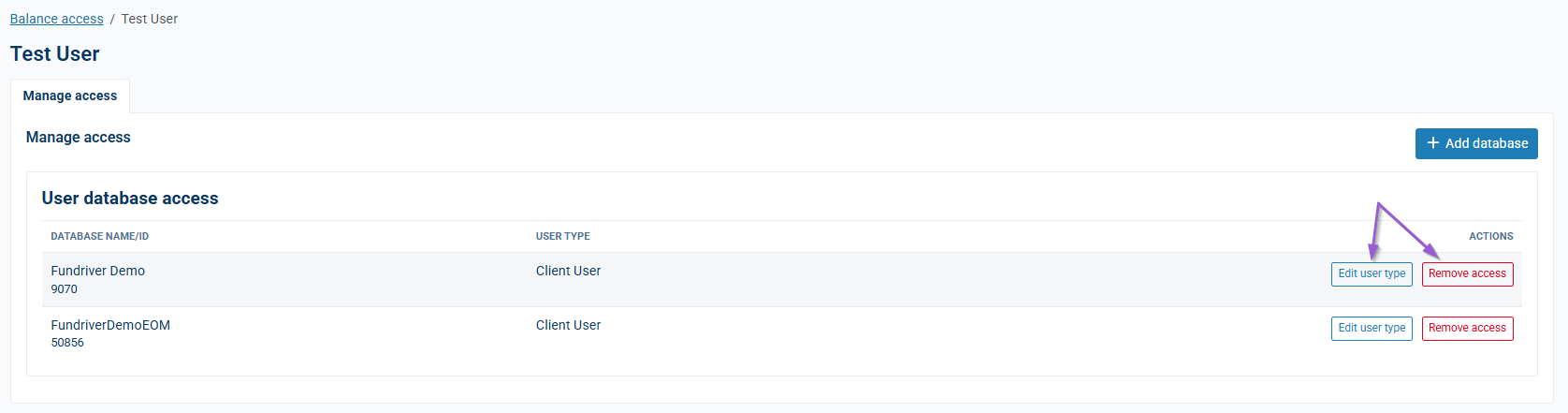
- Click 'Edit user role' next to the database to modify user permissions to match their role within your organization. Choose from the roles listed below:
- Client Administrator: Can add/edit information in Balance, run reports and set up and modify user information.
- Client User: Can add/edit information in Balance and run reports.
- Report Only: Can only run reports in Fundriver. They do not have view or edit access for any other tabs.
- Read Only Access: Can view tabs and run reports in Balance but cannot make any edits to information.
- Fund Reporting: Report-only access for specific funds or groups of funds. This role will need additional configuration within each database.
- If you want to remove access to a database, click the 'Remove access' button next to the database name.
- Save your changes.
Adding New Database Assignments
To assign a user to an additional database, follow these steps:
- Click on a user to view and edit their database access settings. You'll see a list of databases currently assigned along with the user role selected for each.
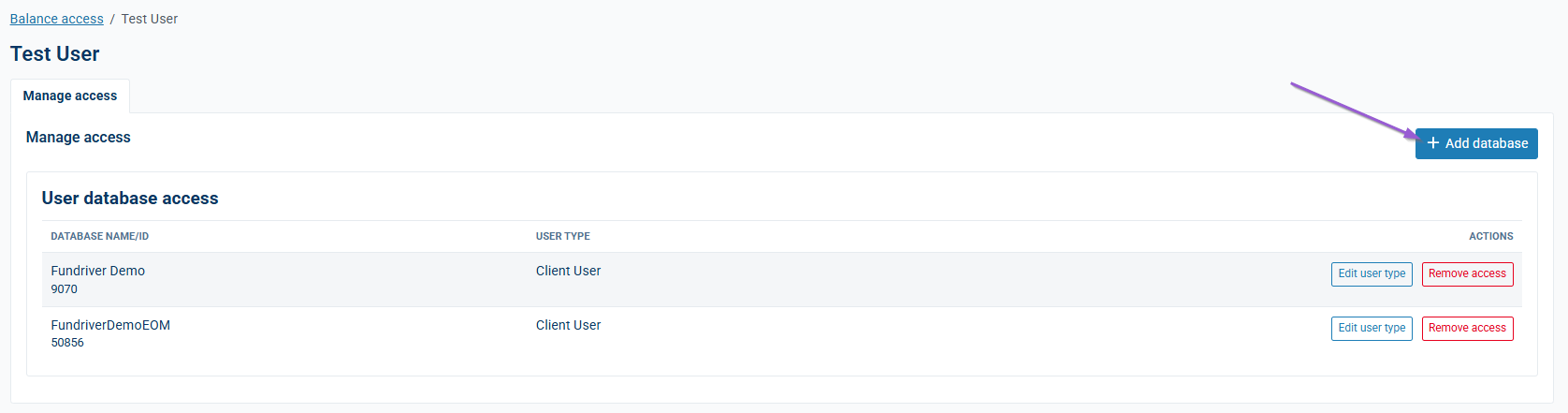
- Click the 'Add database' button towards the right side of the page.
- Choose the appropriate database and select a user role from the list above.
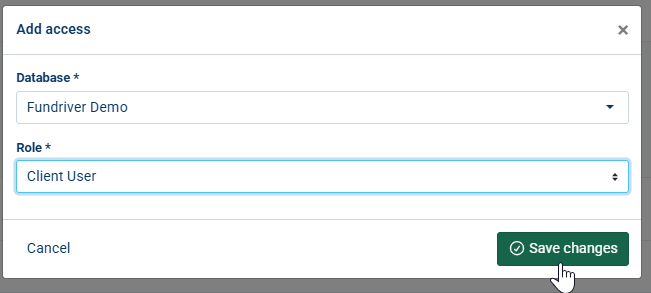
- Save your changes.
Notes
You can add users to test databases within this interface.
- You can add fund reporting role users to multiple databases using this interface.
Watch this demo video to see this role in action!
Reply
Content aside
- 3 days agoLast active
- 10Views
-
1
Following