
Fund Notes Import
This article provides instructions for using the Fund Notes import to add and edit fund notes in bulk.
Please note: Bulk removal of notes is not currently supported via this import. Notes can be deleted individually from the Notes tab on a fund's profile.
Adding New Fund Notes
Go to Import/Export on the left side navigational panel. Click the 'Create new import' button.

- Select the "Fund Notes" import type from the drop down and click the Continue button.
- Download the Fund Notes Import template.
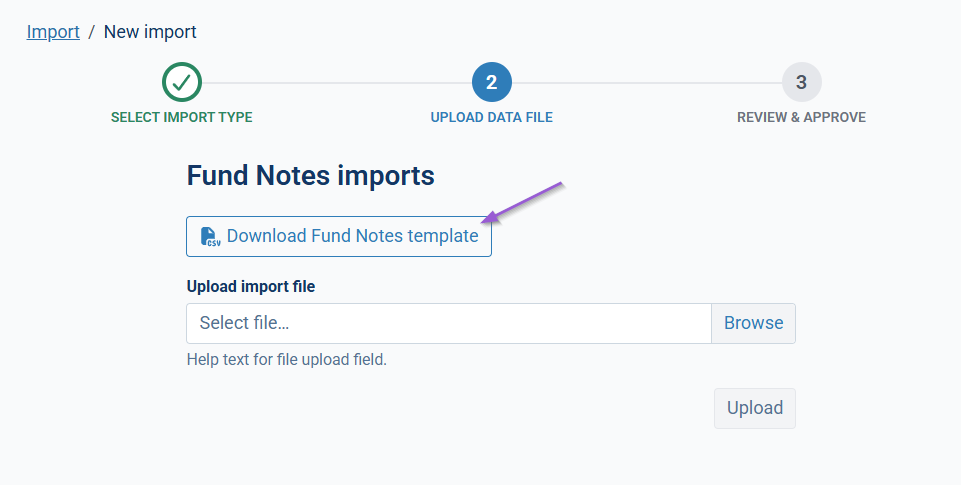
- Populate the import template:
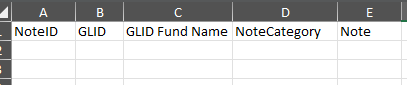
- Leave the NoteID column blank - since these are new records, the system will generate a NoteID automatically upon import.
- Populate the GLID and/or GLID Fund Name columns. Either will work to identify the fund.
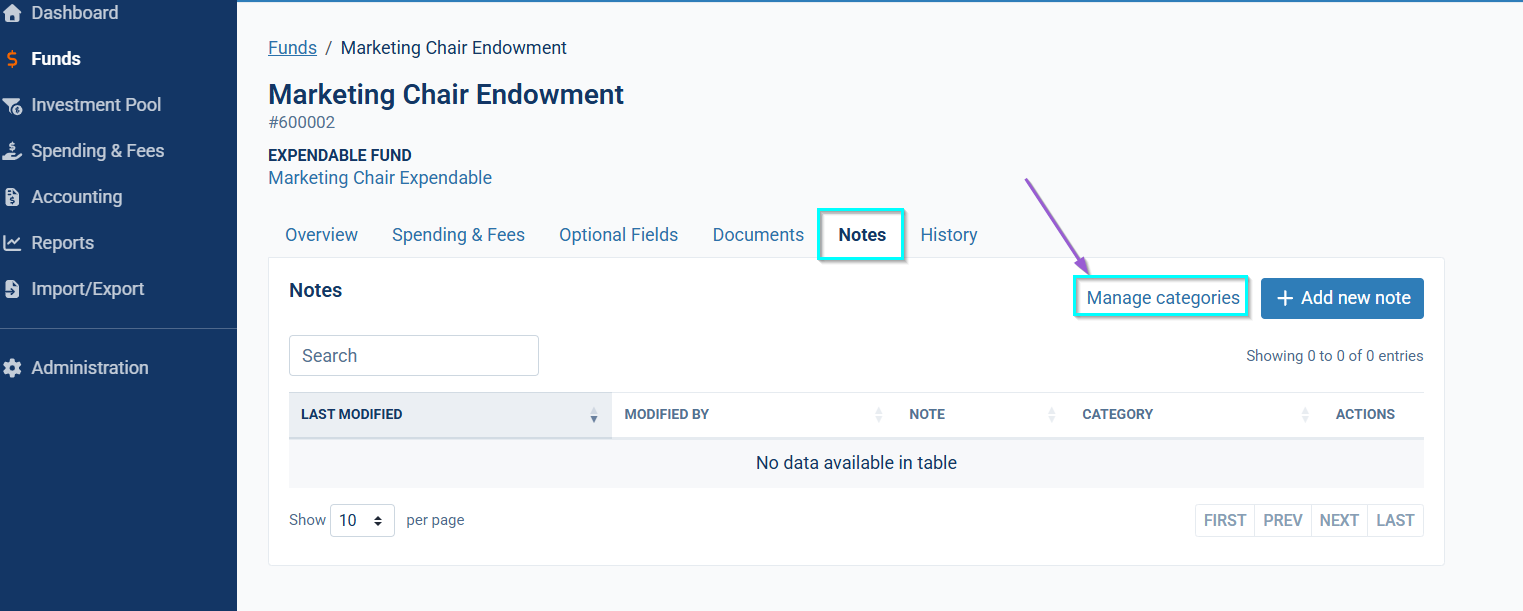
- Populate the NoteCategory field with an existing category in your database. You can view, edit, and add these Note Categories by navigating to any fund profile page and going to the Notes tab. Then click 'Manage categories'.
Populate the Note column with the content of the note you want to add.
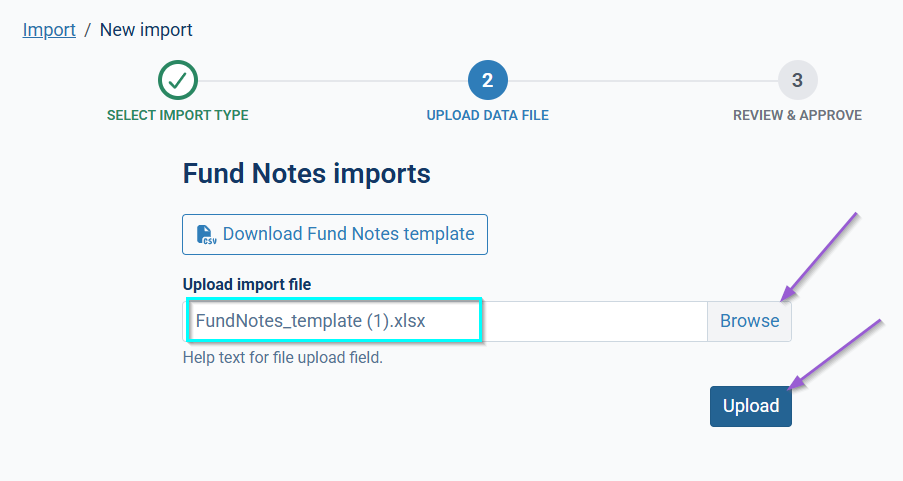
- Once you've completed your template, save locally and use the Browse button to select the file to be uploaded. Once the file has been selected, click on Upload to bring that file into Balance.
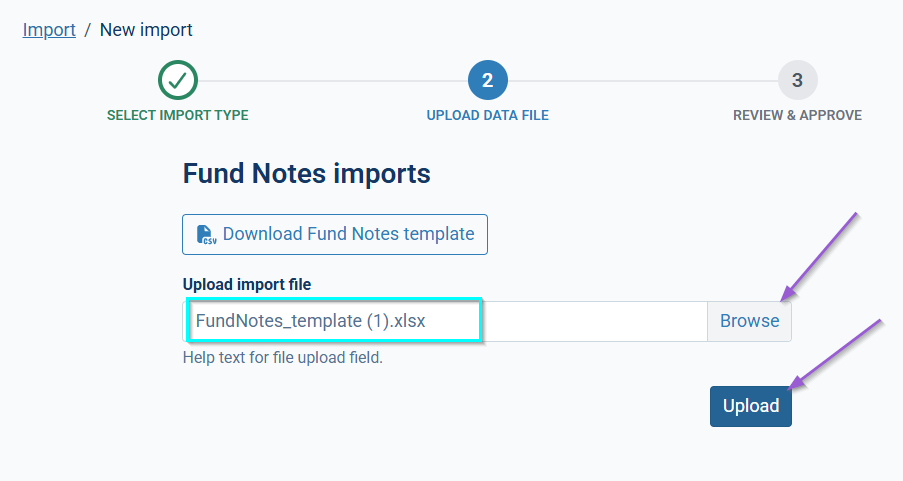
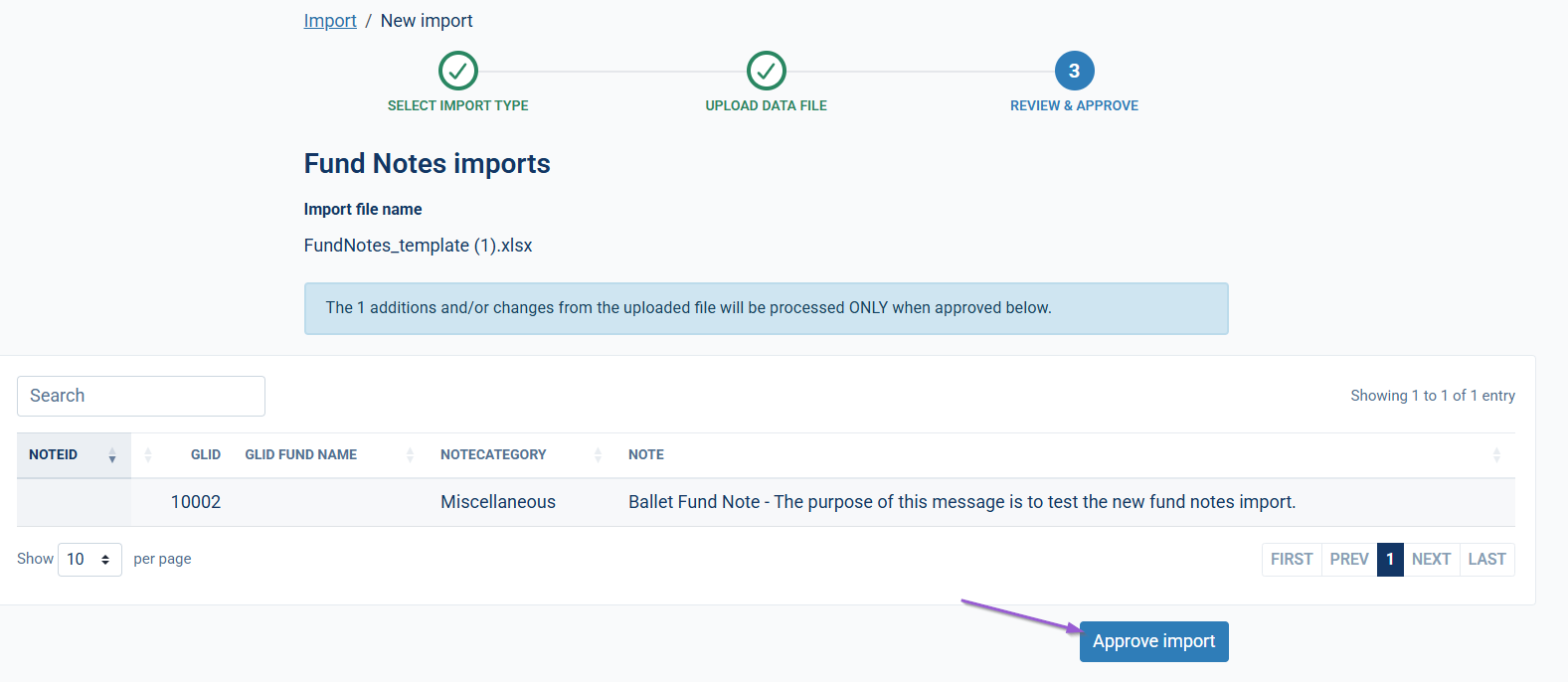
- You'll then see a table with your additions and you'll click the Approve import button to process the file.
- A popup will ask you to confirm approval of the import. Click 'Yes, approve import' then you'll receive a confirmation that the import was approved and records were updated.
Updating Existing Fund Notes
Coming Soon: We're building a new standard audit report that will provide users with the Note ID for all existing Fund Notes. This Note ID will then be used to populate the Fund Notes import template in order to edit existing Fund Notes. This is expected to be released in November 2026.
Once the audit report is available, you'll follow these steps:
Go to Import/Export on the left side navigational panel. Click the 'Create new import' button.
- Select the "Fund Notes" import type from the drop down and click the Continue button.
- Download the Fund Notes Import template.
- Populate the import template:
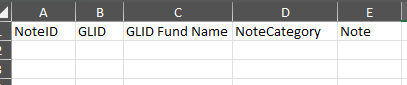
- Enter the NoteID for each note you want to update, along with the GLID. If the NoteID column is left blank, the system will treat the row as a new note rather than an update.
- Populate the NoteCategory and/or the Notes column to make changes.
- Note: The NoteCategory must match an existing category in your database. You can view, edit, and add these Note Categories by navigating to any fund profile page and going to the Notes tab. Then click 'Manage categories'.
- Any existing notes left off your import file will remain untouched in the database.
- Once you've completed your template, save locally and use the Browse button to select the file to be uploaded. Once the file has been selected, click on Upload to bring that file into Balance.
- You'll then see a table with your additions and you'll click the Approve import button to process the file.
- A popup will ask you to confirm approval of the import. Click 'Yes, approve import' then you'll receive a confirmation that the import was approved and records were updated.
Troubleshooting Errors
If the file fails to load, click Download the error list to see row-level details.
Missing Funds: The most common error is a GLID that doesn't exist in Balance. Add the fund to your database first, or correct the GLID in your import file.
Missing NoteCategory: If you reference a category that hasn't been set up yet, add it via Manage categories on the Notes tab of any fund profile before importing, or correct the category name in your file.
Formatting: Ensure GLID and NoteID values match exactly (no extra spaces or formatting) to the values already in Balance.
Reply
Content aside
- 7 hrs agoLast active
- 3Views
-
1
Following